Paginated Reports in a Day Lab Pre-requisites

Pre-requisites:
Before starting the hands-on labs –
- You require an internet connection.
- Your own Power BI account or Free Power BI trial account.
- You will use Power BI Service, which will run on a browser: Microsoft Edge, Google Chrome, or Safari.
- You will be required to install the latest version of Power BI Report Builder (15.7.01704.0001—September 2022) on your computer (Note: This component also requires Microsoft .NET Framework 4.7.2.).
- You will need to verify if you don’t have any firewall restrictions set by your organization to not allow access to the public Azure SQL Database needed for PRIAD workshop.
Task 1: Download the Attendee kit
- Download file Attendee kit.
- Download the PowerBIPRIAD-Student.zip file for the lab from Attendee kit. Save it to a local folder, such as “C:\Training”. Extract the ZIP package. All lab documents refer to this location as <CourseFolder>.
Task 2: Create a free Power BI account and sign-in to Power BI Service
Note: For those who have their own Power BI accounts can move on to Task 3.
- Use this link to sign up free for Power BI account with your business or school account. This is the same as your Office 365 or Dynamics 365 login.
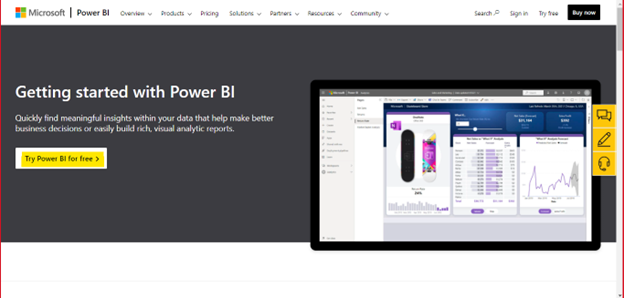
- After clicking on the above link, you will be redirected to the below shown page. You need to click on “Try Power BI for free” as highlighted below.
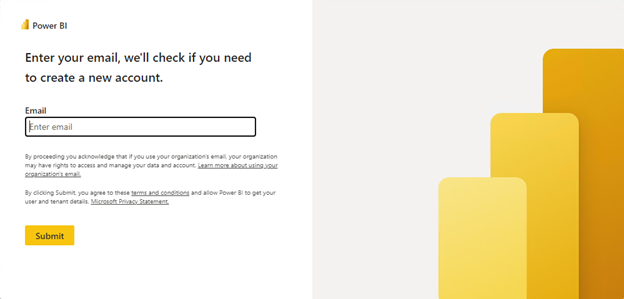
4. Then you will be redirected to the below page to enter your details and complete the sign-up process.
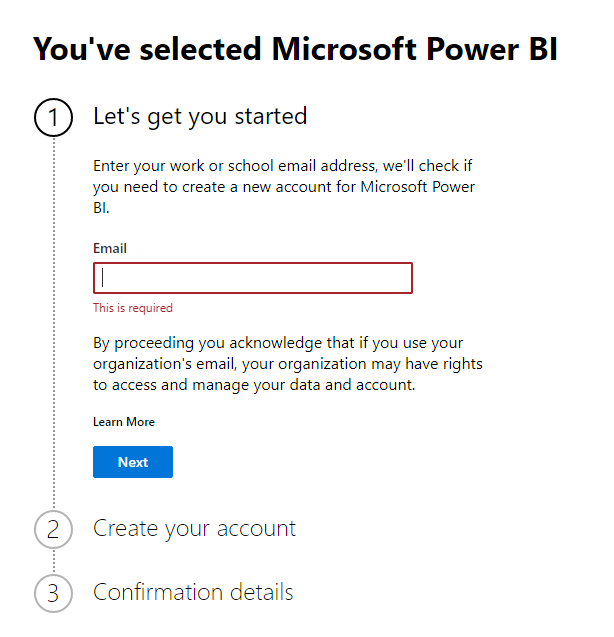
5. Then you can sign in to Power BI Service with the newly created Power BI trial account.
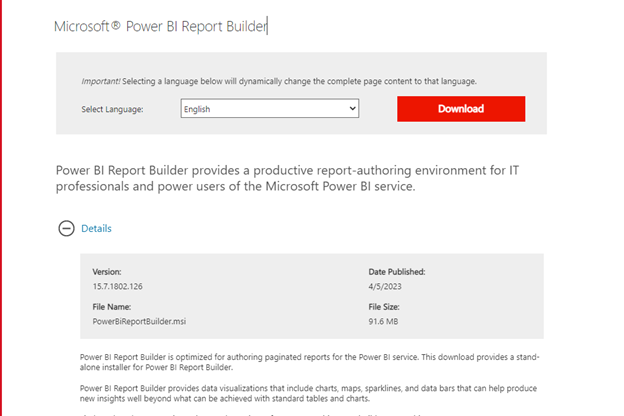
Task 3: Download and install the Power BI Report Builder using this link which will take you to the below given page.
Task 4: Test Database connection
- Refer the \MySolution\MyEnvironment.txt file inside the Attendee Kit or use the details below toConnect to SQL Server Management Studio to test the public Azure SQL database connection.
- Server name: priad.database.windows.net
- Authentication: SQL Server Authentication
- Username: readonlyuser
- Password: Pass@word1
- In the Connect to a Database section, in the Select or Enter a Database Name dropdown list, paste in the database name: AdventureWorksDW2021-PRIAD
Users who have issues connecting usually can resolve their issues by turning off any VPN they may be using, otherwise have your IT configure the firewall rules you have in place to allow communication to this public Azure SQL Database. All the information needed to achieve this is provided using this link.
***Image Credits and Reference: www.microsoft.com